
Thanks for your interest in CHECK POINT RUN!

For best experience please read this on wide-screen device or computer.

Do you enjoy orientation runs or treasure hunts? Tracking routes and beating the clock? We all do! With the help of modern technology, the fun becomes unlimited. And that is exactly what this application wants to help you with.

We love to run and navigate. We equally enjoy wastelands and urban areas when it goes for a bicycle ride or for a long walk. In the past, we used maps to navigate. Last few years, programmers among us rounded up their sleeves and programmed some pretty nifty mobile apps to use in our adventures. Now, we have finally derived this application from several years of experience and all previous private projects with the same purpose.

The result - the app you can use today - is a combination of most important features of several smaller applications that never made it to the public.

The Application allows you to create running, walking, cycling and similar routes by going along the way and marking physical geographic coordinates. Make yourself and your teammates beat the clock to finish the route on time. Share created routes with your teammates to compete and see who is the fastest.

Providing creation of precise routes with coordinates and elevation info, this application will let you create most demanding routes for your friends. Then, whether by foot or on a bicycle, they will be precisely navigated from point to point and their performance and time measured.

Please forgive us for the imperfection of this page. Being quite a new up - although already some time in development - the application pushed the web presentation part way into the background. We promise to get things better as soon as possible! :-)

Now take some of your precious time and check main features Check Point Run brings to you:

Create routes on the run

Instead determining and entering coordinates manually, just walk/run/ride your route and add checkpoints in real time. The result will be perfectly timed and coordinated route, easy to follow, shareable with your team. Or just for your personal improvement.

Race against the clock!

Every route can be time-limited. Push yourselves and your teammates to the limit!

Sound notifications

There is no time to check your current position every second, we know. That is why the app alerts your with appropriate sound signal whenever something significant happens (you reach the checkpoint, or the time is up).
Team game

Our background services (assuming you have the Internet connection) provides capability of storing, sharing and synchronization of routes created under the same team name. Routes are private to the team and protected with team password.

Personal and team statictics

Personal statistics per-route is kept locally, and (if you set the application so) shared with the team you decide to belong to.

Maps navigation assistance

We know how far capabilities of GPS hardware integrated into mobile devices can go. Therefore - beside real-time heading and location info - the app provides maps services on both iOS and Android systems to help you find marked checkpoints and get oriented in space. Unless having offline maps, you will need an Internet connection for this feature too.

Instructions

Main menu

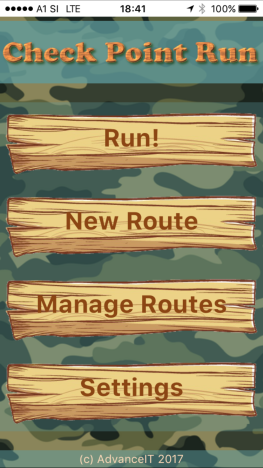
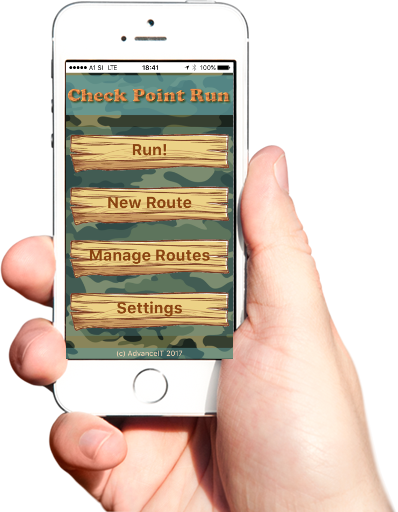
Assuming your routes are already defined and ready, just tap "Run!" to select one and start.
To create a route tap on "New Route", but consider arranging some settings first!
For more options and operations regarding routes, tap on "Manage Routes" button.
"Settings" button will allow you to enter your name and select or create your team if you want to share your exercises with your team mates.
Previous Next
Settings

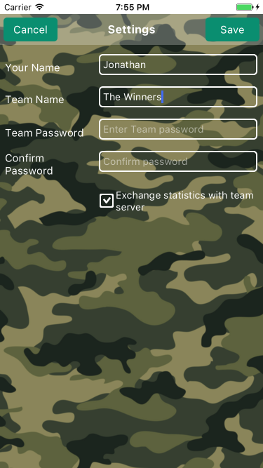
Before you start using the application, it would be wise to enter your name or "name" and select a team if you plan to share your routes and run them against the clock with your friends. You can ofcourse run routes on your own, maybe just to remember which way you went last time...

Enter your name and optionally team name. You and your teammates should naturally use the same team name; the password must be entered twice just to be sure. The one who creates the team, determines the password.

If you mark the checkbox, statistics on your route results will be uploaded to background server and visible to other team members. You can read more about this feature at the end of this looooong manual.
Previous Next
Creating a New Route

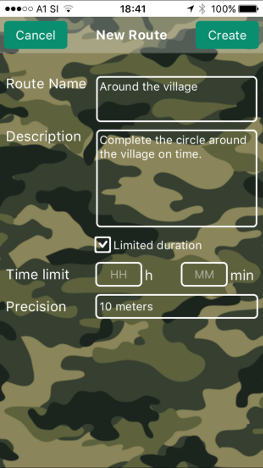
... is as simple as possible. Enter short route name - something that means something to you and your teammates (and possibly says something about the route itself ;-) - and optional description with a bit more data. Then decide if the route is time limited. Limiting the time means that the route can only be completed if you reach the last checkpoint within assigned time period, or it will be marked as a failure.

VERY important characteristic of each route is the PRECISION. You guess - smaller precision range means that you will have to be more accurate visiting checkpoints. We suggest higher precision (smaller range in meters) for routes with smaller distances between checkpoints and vice-versa. If you mark a route over several dozens of kilometers, you will probably want to have more relaxed checkpoint precision. Conversely, when marking a route around the backyard for your children, 5 meters should do just fine.
Previous Next
Route Details

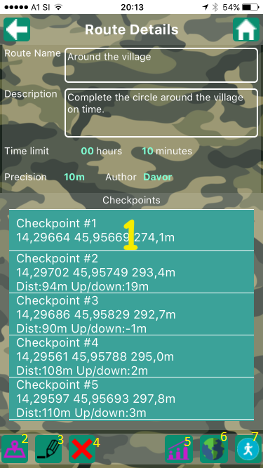
Of course the screen on the left will not look the same as with your new route - there will be no checkpoints in checkpoint list (1). To actually define the route, you should hit the road and start MARKING the route (2). The process of marking is described in next step, here and now let us just tell what buttons at the bottom of the screen do (the ones on the top really need no explanation, do they?):

(2) Already said - starts the marking of route checkpoints.
(3) Edit checkpoint properties. You should "tap" the exact checkpoint before pressing this button.
(4) The same with editing - except that selected checkpoint will be gone for good.
(5) Statistics. Come back to this one when you actually finish some of your routes!
(6) The one you will use whenever you fall in doubt about climbing 8-feet wall to get to next checkpoint only 2 meters away...
(7) Run the route - go for the real thing.
Previous Next
Marking The Route

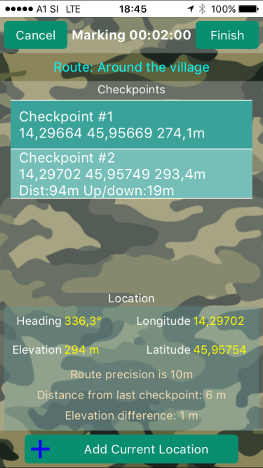
"Check Point Run" uses mobile device GPS (and in some of them compass) capabilities to allow recording of location and elevation of physical geographical coordinates in real time. That means that your device provides mentioned information and you can decide if your current location is good enough for one of your checkpoints. Unfortunately, not all devices provide high quality GPS services. Always allow the device built-in GPS hardware to stabilize and "warm up" a bit. Also take in care you should be in the open, because GPS is known to perform very poorly in garages...

You have probably figured it out by now - you "mark" the route (literally add checkpoints) by moving around and marking significant points you want future trackers to reach one by one to complete the run. Start with positioning yourself at the location that represents the first point of your route and add the first checkpoint. Then move to the next one, and add it. Repeat the process until you are at the location considered to be the last checkpoint of your route (yes, it can be the one you started with, but you need to mark it once again).

When you tap "Finish", the route will be saved. You can continue marking the route if you finished it accidentally or had to make a pause. When re-starting the marking, you will be allowed to either erase existing checkpoints or simply continue adding checkpoints.
Previous Next
Checkpoint Details

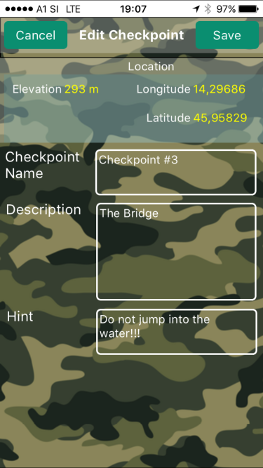
Just upon adding it or when editing the checkpoint, you can enter some information to describe it in detail. If the checkpoint is hard to find or reach, some additional description and devices can help. Like "go around the stone" or "climb the wall". Sometimes as simple as on our screenshot.

"Beware of the bear" is also quite useful although we do not advise creating routes that need that kind of a warning.
Previous Next
Using The Map

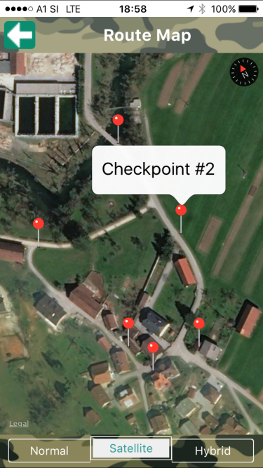
This one is the simplest so far, huh? It actually shows you all checkpoints you marked on real world map. Nice to check if your GPS coordinates accidentally fell in the middle of the lake or something worse.

The map is also accessible when you run the route, but it will not tell you anything more than where are marked positions of all checkpoints in relation to each other. Tap the specific marker to see what checkpoint it represents. That's all. Now continue running!
Previous Next
The Real Thing - Run The Route!

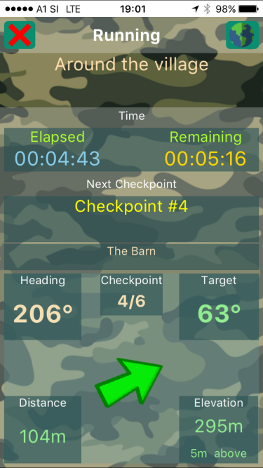
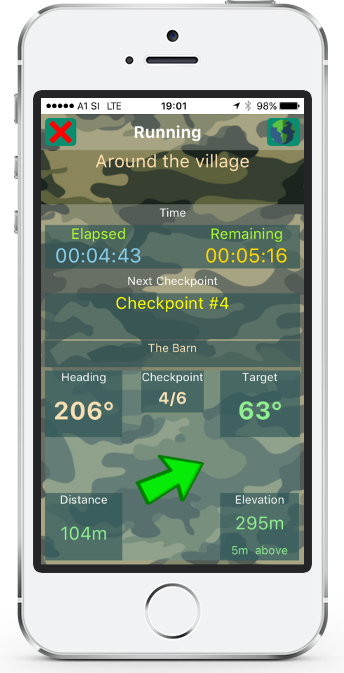
So far you should have been able to mark your first route and are eager to test it. Using the button #7 in "Route Details" or starting from main menu and tapping your route, the fun begins. The application will first guide you to the starting checkpoint, then the next one, etc. You must get as close to the checkpoint as the precision of the route demands - if route precision is 50 meters, you should get at least 50 meters or closer to the location to hit the checkpoint.

Information on next checkpoint is shown with location data as entered during marking process. The green arrow will do its best to point you in the direction of the next checkpoint. Keep in mind that "the direction" does not mean the exact way to reach it unless you are in the airplane - it may happen that you need to "go around" many times the distance to avoid obstacles of all kinds. Hint: read hints. If there are any...

It is important to say that not all mobile phones have built-in magnetic heading device (a compass) to determine your heading in real time. The device without compass has to determine your heading and direction by calculating the angle between your last and your present location. To get most accurate heading, you should MOVE and KEEP YOUR DEVICE POINTED IN CONSTANT DIRECTION, best directly to the front of you. Do not swirl your device around. When the arrow changes the direction, it is accurate until you turn the device to some other direction - then you have to move some more meters to get the direction again.
Previous Next
Manipulating Routes

Tap the route and:
(1) Gets you into route details screen.
(2) Creates new route (no need to tap one before)
(3) Edit route details and properties (only routes created by you)
(4) Delete the route (any route, but only local storage; team routes can be deleted only by their creator)
(5) Special case, read on...

Synchronizing routes

You are right - that is the operation that does data exchange magic between you and your team members. When you create a route and are the member of a team, tap this button and your routes will be updated to your team data on our server. Routes created by other team members will be pulled down to your devices. Whenever routes change, you must "synchronize" the data to have most recent data on your device. The data exchange happens only within context of the team you currently belong to (see "Settings").

If you delete the route that was not created by you, it will be deleted on your device only and downloaded again on next synchronization process. You should ask route's creator to permanently remove it if necessary.

Oh, did we mention that you need an internet connection to perform server-depending operations, specifically route synchronization?
Previous Next
Statistics

The last and probably the least, but helping your results to be recorded in order to get extra beers. The application tracks your route results and will (if allowed in settings) upload them to your team history database. Then, you can take a look at individual results, either your own or all of your team performance per specific route.

Thanks for reading this long manual! Now get out and start moving - enjoy, be healthy and have tons of fun!
Previous Next

GET IN TOUCH

For questions, troubleshooting and assistence please send an E-Mail to

Check Point Run Development Team [advanceit@pleskina.com]

and explain what troubles you.

We will be glad to answer your questions and solve eventual problems! :-)